The "Zero-Effort" Twitch-to-YouTube Pipeline
This has been a project that I've been putting off for YEARS. I don't remember who/what/where/when told me that I should be offloading my past Twitch streams to YouTube, but I decided that I should be doing it. After a while, it became very tedious and time-consuming, eventually leading to me just not wanting to do it anymore. At some point in time, I had thought about offloading the task to a program. Digging around numerous tutorials and checking out paid third-party applications, I had decided to give it a try. Long story short: I ran into a few roadblocks. Eventually, life got a bit more busy and I stopped uploading to YouTube.
Fast-forward to this year. My project list has been slowly growing, and I honestly need to work on completing some of these. So I decided that I'd revisit the Twitch/YouTube project. I found the notes and the failed code and read what I had tried in the past. Given that I have evolved my stream since then, I have new toys to play with! Sometime last year was when I decided to start incorporating Streamerbot into my streams. Let me tell you - it has been a game changer. If you are on the fence about giving it a try, just do it. Now, Streamerbot doesn't do EVERYTHING for me. I still have tools that I use outside of it for my stream. But this one concept that I've been kicking around in my mind was this idea. How can I utilize Streamerbot to help with the Twitch-to-YouTube VOD idea? After checking out several YouTube videos, GitHub repos, and Streamerbot ideas, I figured it out. Let me walk you through this.
First, I wanted to take a finished Twitch stream and move it to YouTube without manually downloading and uploading. That was what killed my drive and motivation in the first place. I was familiar with yt-dlp, but I wasn't super well versed in it. In other words, I didn't know HOW to make it work. I just knew that it could get the data from Twitch and then to YouTube. After messing around with some Python scripts, I hit a wall. I had reached a point where Streamerbot had a trigger to download a VOD, did some cleanup (I decided to download in chunks so that if power or internet died, it wouldn't be as vulnerable to corruption), then attempt to upload it to YouTube. There is a prompt from Google's Auth Platform that asks you to verify the connection. I would click it, but nothing would continue from there. I don't know how many hours I spent racking my brain on this. Everything seemed to be working, code-wise. I started removing things, adding things, etc. Nothing worked. At some point in time, I figured it out. I didn't have the right Scopes enabled in the Google Auth Platform. After fixing that, I still had an issue with generating a token. My answer to that was essentially making a get_token.py file that forces a token to generate. Tried it afterward and things were moving right along.
Next up was more of me getting curious. I wanted to know if I could add in some more "zing" to this little project. Clips happen from streams. For me, these tend to get more attention on YouTube than my solid 4-hour stream VODs. Since I had figured out how to get the Twitch-to-YouTube connection working, I decided why not clips? This was a bit more out of my skill-set, so I caved and asked for help. Enter: Gemini. Now, I know what a lot of you are probably thinking and hear me out before you leave and never come back. All I wanted from Gemini was advice as to how to go about achieving this idea. It helped me set up a "template" for capturing my face cam, the middle of the screen game-play, and adding in my channel name on the top. It wasn't exactly necessary since clips are kind of in that format, OR SO I THOUGHT. When I visited my Twitch dashboard, the clips section actually has the normal layout that is seen on the stream. You have to MANUALLY go into every single clip and change it to the vertical format. That is just another time sink for me. So Gemini actually caught that tidbit for me because I honestly didn't remember any of that from years ago. I tested it out and after some adjusting for the camera location and the text, I got it to work. My only qualm with this set-up: I have to type in !short [URL]. This obviously isn't what I am wanting, but it is something I can work with for now. I'll probably update this article once I figured it out.
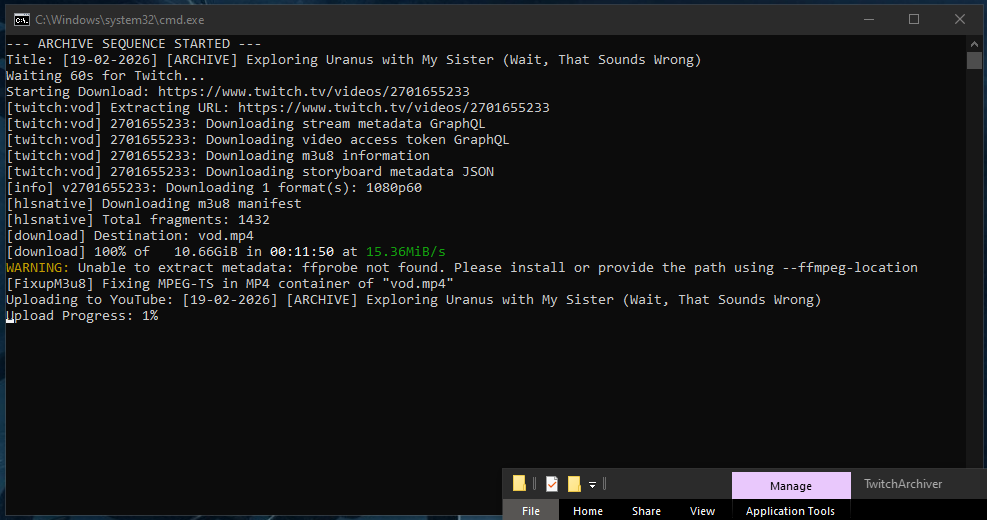
In the end, I am pretty impressed with how this project came out. I still need to tweak it here and there, but overall it's nice knowing that I don't have to manually do all this work anymore. As I am writing this, I'm watching it upload my first, official Twitch VOD of 2026. I have a date format that needs adjusting (I don't want the month/day/year - I want the day/month/year format), I need it to pull the stream title along with the upload, and I need to have the visibility as public. Other than that, job complete for 2026.
To do this project, you will need to have Streamerbot, some way of coding (Notepad++ or some version of Visual Studio are what I've been using lately), and a YouTube channel that you plan to upload to. Start off with the upload.py script below. You can either fill out the information first or do it later, but in the end the info will have to be there.
In order to have all of these things work in the script, you will need to install a few things. I provided a requirements.txt here for you to simply execute their installation via pip install -r requirements.txt. Run that and continue on.
requirements.txt
google-auth-oauthlib
google-auth-httplib2
yt-dlp
Next up can be either the get_token.py, the FFmpeg, or setting up the Streamerbot connection. This is how I set up my Streamerbot for this connection:
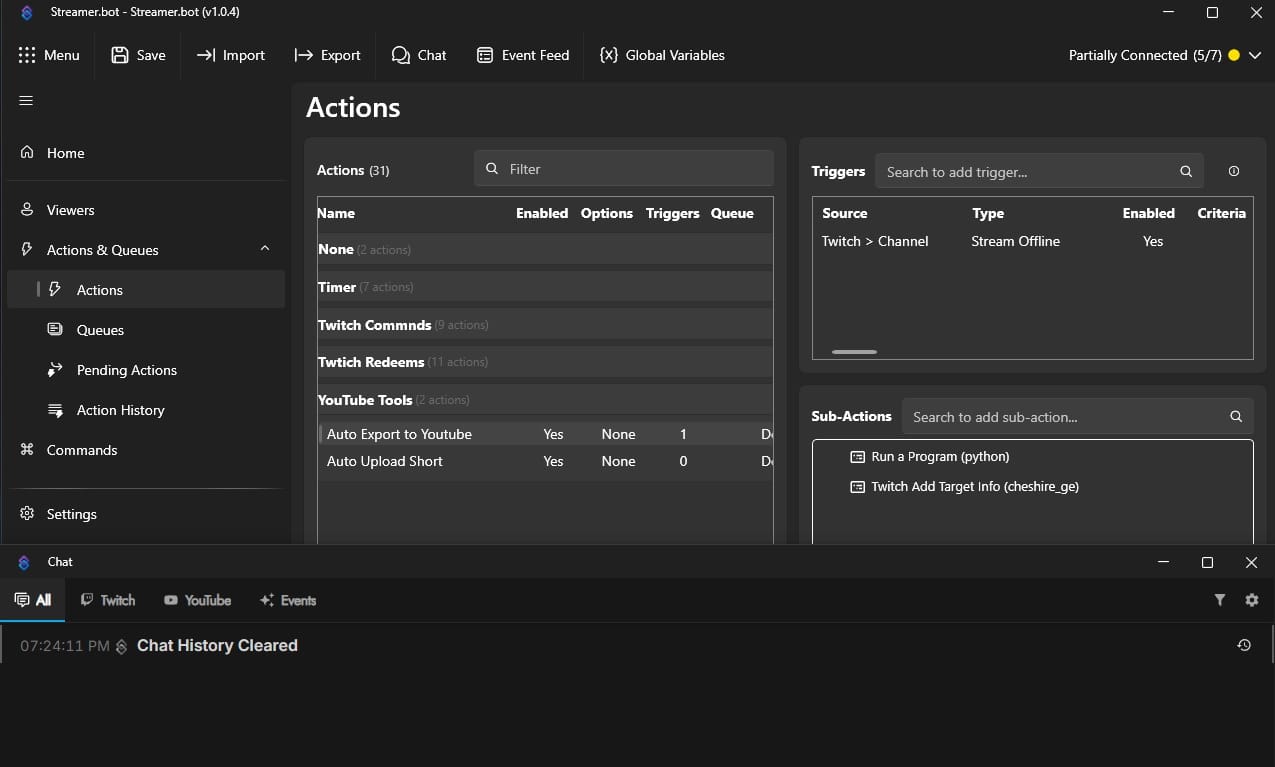
Go to your Actions & Queues on the left navigation bar. Click on the Actions sub menu. In the big box area, right click and hit that "Add Action" option. Give it a name (I chose "Auto Export to YouTube" for obvious reasons). Next up is setting a Trigger. In the Trigger window, right click and Add → Twitch → Channel → Stream Offline. Make sure this is enabled! After that, go to the Sub-Actions window. Now, for me, I have 2 sub-actions listed here. I'm not quite sure if both are needed for this core Twitch-to-YouTube, or if one of them was for the additional clip that I still need to work on. For the sake of things, let's do both. First one is to Run a Program: Add → Core → System → Run a Program. For this, you will have to type in for the Target: python, the Working Directory: literally where this is at on your PC (mine is in a J:\FOLDER for example), and then the Arguments: upload.py "%targetChannelTitle%". Click OK and you should be set. This is to ensure that once your stream ends, Streamerbot will start this script and when it is running the upload.py, it will find your stream title and use it. The second one is Add → Twitch → User → Get User Info for Target. Enter your channel name on Twitch here. Click OK. That's it. Everything should work. Next time your stream ends, the script should kick off and pop up a nifty window that displays the whole process. I highly recommend you watch your YouTube Studio for the upload process to ensure that everything is working as you hope for. There were times when the silly thing didn't capture the title (be sure to keep them semi short because YouTube has a limit) or it didn't post to Public, or it just didn't do anything.
There is one more file that you need to create. This one is a client_secret.json file. I provided a generic template for this step. Please note that you cannot just simply copy/paste this and expect it to work. This takes a whole 5 minutes to create. In order to fill this out completely, you will need to: Go to Google Cloud Console and create a new project. Enable the APIs by searching for "YouTube Data API v3" and click ENABLE. Configure your Consent Screen by setting it to "External" and BE SURE TO ADD YOUR EMAIL. If you don't, this will not work. Ask me how I know. Next up is creating your credentials. To do this, click Create Credentials → OAuth client ID. Select Application type: Desktop App. Download the JSON file. Please, for everyone's sake, do not lose that file. If you do, you will have to redo all of that just to get access to it again. Once you have that file, rename the downloaded file to client_secret.json and make sure to place it in your folder with everything else related to this project.
Enjoy!
Prerequisites: Before you run these scripts, make sure you have created your client_secret.json and installed the requirements.txt via pip. If not, these will not work.
upload.py
import os
import sys
import time
from datetime import datetime
from yt_dlp import YoutubeDL
from googleapiclient.discovery import build
from googleapiclient.http import MediaFileUpload
from google.oauth2.credentials import Credentials

# --- SETTINGS ---
TWITCH_CHANNEL_URL = "https://www.twitch.tv/YOUR-CHANNEL-NAME-HERE"
SCOPES = ['https://www.googleapis.com/auth/WHATEVER-YOU-NAMED-YOUR-SCOPE-HERE']

def get_latest_vod():
    ydl_opts = {'quiet': True, 'extract_flat': True}
    with YoutubeDL(ydl_opts) as ydl:
        result = ydl.extract_info(TWITCH_CHANNEL_URL, download=False)
        if 'entries' in result and len(result['entries']) > 0:
            return result['entries'][0]
        return None

def upload_to_youtube(file_path, title):
    if not os.path.exists('token.json'):
        print("Error: token.json not found. Run your auth script first!")
        return

    creds = Credentials.from_authorized_user_file('token.json', SCOPES)
    youtube = build('youtube', 'v3', credentials=creds)

    request_body = {
        'snippet': {
            'title': title,
            'description': """TYPE WHATEVER YOU WANT IN THE DESCRIPTION OF EVERY SINGLE VIDEO HERE. KEEP THIS FORMAT SO YOU CAN HAVE SPACES INVOLVED""",
            'categoryId': '20' # Gaming - YOU WILL HAVE TO LOOK THESE UP BUT THIS IS FOR GAMING
        },
        'status': {
            'privacyStatus': 'public', # FORCING PUBLIC HERE BUT CHANGE FOR YOUR PREFERENCE
            'selfDeclaredMadeForKids': False
        }
    }

    media = MediaFileUpload(file_path, chunksize=1024*1024, resumable=True)
    request = youtube.videos().insert(part='snippet,status', body=request_body, media_body=media)

    print(f"Uploading to YouTube: {title}")
    response = None
    while response is None:
        status, response = request.next_chunk()
        if status:
            print(f"Upload Progress: {int(status.progress() * 100)}%", end='\r')
    print(f"\nUpload Complete! Video ID: {response['id']}")

if __name__ == "__main__":
    try:
        print("--- ARCHIVE SEQUENCE STARTED ---")
        vod_data = get_latest_vod()

        if not vod_data:
            print("Error: No VODs found.")
            sys.exit()

        # URL and Title recovery
        vod_url = vod_data.get('url') or vod_data.get('webpage_url')
        twitch_title = vod_data.get('title', 'Stream Archive')

        incoming_arg = sys.argv[1] if len(sys.argv) > 1 else ""
        stream_title = incoming_arg if (incoming_arg and "%" not in incoming_arg) else twitch_title

        current_date = datetime.now().strftime("%d-%m-%Y")
        formatted_title = f"[{current_date}] [ARCHIVE] {stream_title}"

        print(f"Title: {formatted_title}")
        print("Waiting 60s for Twitch...")
        time.sleep(60)

        # Download Section
        print(f"Starting Download: {vod_url}")
        ydl_args = {
            'outtmpl': 'vod.mp4',
            'format': 'bestvideo[ext=mp4]+bestaudio[ext=m4a]/best[ext=mp4]/best',
            'merge_output_format': 'mp4'
        }
        with YoutubeDL(ydl_args) as ydl:
            ydl.download([vod_url])

        # Upload Section
        if os.path.exists('vod.mp4'):
            upload_to_youtube('vod.mp4', formatted_title)
            os.remove('vod.mp4')
            print("Success: VOD archived and local file removed.")
        else:
            print("Error: vod.mp4 was not created.")

    except Exception as e:
        print(f"\nCRITICAL ERROR: {e}")

    print("\n--- SCRIPT FINISHED ---")
get_token.py
from google_auth_oauthlib.flow import InstalledAppFlow
import os


SCOPES = ['https://www.googleapis.com/auth/youtube.upload'] #if you didn't call your scope youtube.upload, change it here
CLIENT_SECRET_FILE = 'client_secret.json'

def get_token():
    flow = InstalledAppFlow.from_client_secrets_file(CLIENT_SECRET_FILE, SCOPES)

    # This will open your browser.
    # Even if the page says "Failed to Connect" AFTER you click allow,
    # the script should still catch the token.
    creds = flow.run_local_server(port=0)

    with open('token.json', 'w') as token:
        token.write(creds.to_json())

    print("\n================================================")
    print("SUCCESS! token.json has been created.")
    print("You can now close this window and delete this script.")
    print("================================================\n")

if __name__ == "__main__":
    get_token()
client_secret.json
{
  "installed": {
    "client_id": "YOUR_ID_HERE.apps.googleusercontent.com",
    "project_id": "your-project-name",
    "auth_uri": "https://accounts.google.com/o/oauth2/auth",
    "token_uri": "https://oauth2.googleapis.com/token",
    "auth_provider_x509_cert_url": "https://www.googleapis.com/oauth2/v1/certs",
    "client_secret": "YOUR_CLIENT_SECRET_HERE",
    "redirect_uris": [
      "http://localhost"
    ]
  }
}
You will need the FFmpeg executable to run the fix for the VOD. You can find that here: https://www.ffmpeg.org/download.html
You will need to generate the token.json for any of this to work. At some point in time, you have to regenerate this token. Simply delete the token.json file, run the get_token.py, and ensure you have the new token.json file.
Want more stuff? Be sure to subscribe (for free!!!) and even join the Discord!


Comments ()